I went through the export options in Replit's current editor docs and found 3 ways to get your code out: a zip download, a push to GitHub, and a local clone. The zip is the fastest, and GitHub keeps a copy with full history.
None of them moves your database or secrets, so this guide also covers how to rebuild those after the export.
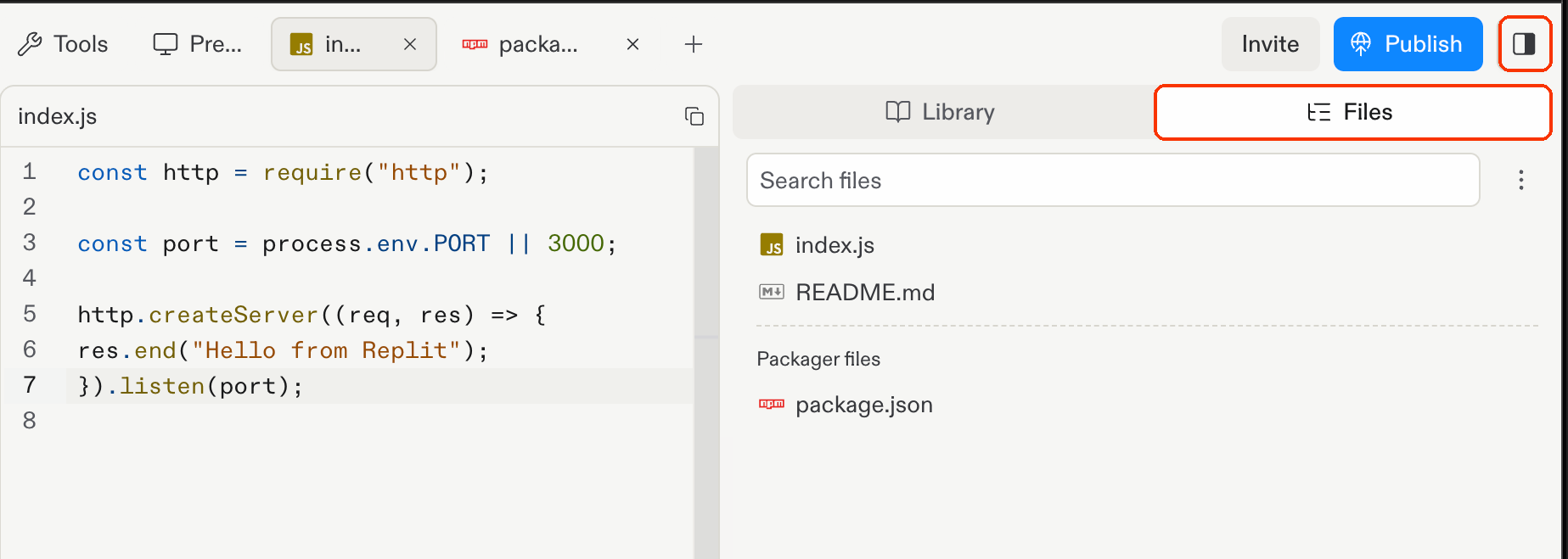
Quick answer: To download the whole project as one file, open the Files tab in the sidebar on the right, click the three-dot menu at the top of the file tree, and choose Download as zip. If the option is missing or doesn't work, your workspace admin may have turned on Ban source code export.
Before you export code from Replit
Confirm access and tools first, since they decide which of the 3 methods you can use.
Prerequisites:
- Editor access to the project: You need it to reach the file tree menu, the Git pane, the Secrets tool, and the Database tool.
- A GitHub account (Methods 2 and 3): Create a private repository unless you want the code public.
- Git and your app's runtime on your machine (Method 3): Node.js for a JavaScript app, Python for a Python app. The project's .replit file tells you which one it uses.
- Export permission: On Enterprise workspaces, an admin can block ZIP downloads. Ask your admin about it if you're counting on Method 1.
Time required: A small project downloads quickly, and Replit warns that large ones can take a while. If you also move a database and a custom domain, Replit's manual copy guide estimates about an hour for the final move, with 15 to 60 minutes of downtime.
How to export code from Replit: 3 methods
All three methods export your code, and each handles commit history and syncing its own way.
Method 3 needs the repository from Method 2. Push to GitHub first, then clone from there.
Method 1: Download your Replit project as a ZIP
This is the fastest route, and it's the method to use if you've been downloading files one by one.
- Open the file tree. In the Project Editor, open the Library sidebar from the button in the upper-right corner and select the Files tab.
- Open the three-dot menu at the top of the file tree.
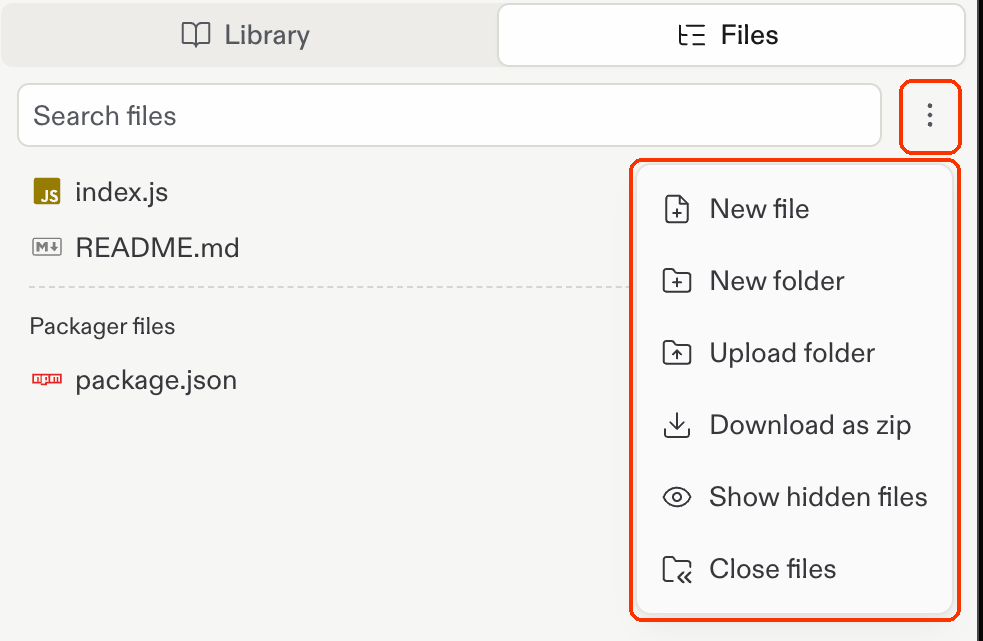
- Select Download as zip. Your browser saves one zip with the whole project.
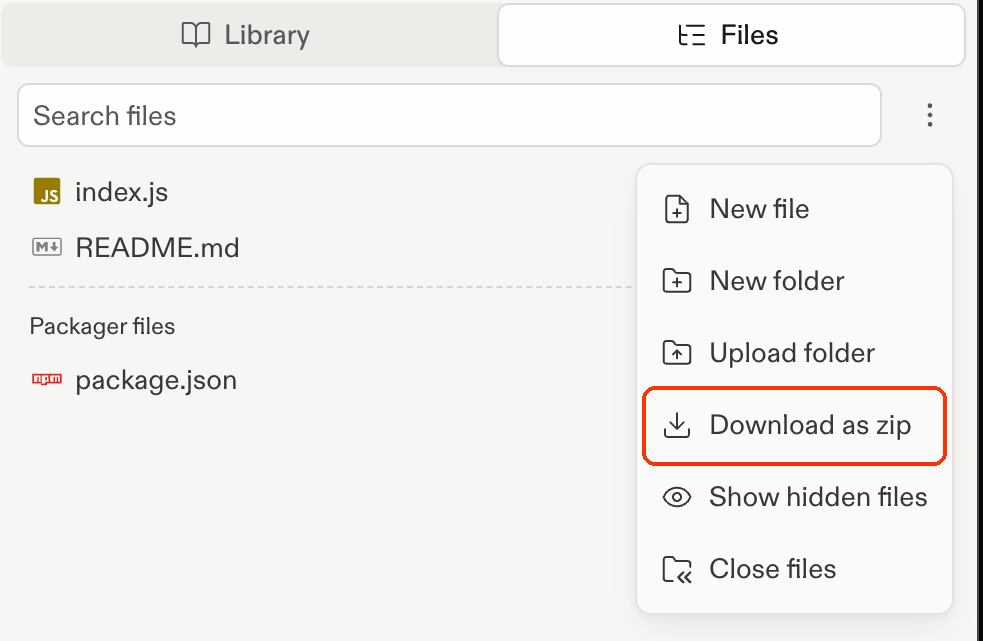
- Unzip it and look for the hidden files. Find .replit and replit.nix. They hold the run command, language modules, and system packages your app expects. Your new host needs the same values, and Method 3 shows where to put them.
If the download fails, the projects and files help page suggests running zip -r project.zip . in the Shell tool. That command also packs .cache and dependency folders, so Replit's copy guide uses a tighter version that leaves them out:
zip -r project.zip . -x ".cache/*" "node_modules/*" ".venv/*" "venv/*" ".pythonlibs/*" "build/*" "target/*" ".next/*" "__pycache__/*"
Run du -h project.zip to check the size. Then select the three-dot menu next to project.zip in the file tree and choose Download.
Replit flags .cache as internal state that includes cached secret values, so keep it on that list. Then look inside any zip you plan to share for .env files and hardcoded keys.
Method 2: Push your Replit code to GitHub from the Git pane
GitHub gives you a copy you keep even if you lose access to Replit, and you can connect it to a host for deployment.
- Link GitHub to your Replit account. Go to your account's connected services and connect GitHub.
- Open the Git pane. In the Project Editor, select Tools, then the Git icon in the Tools sidebar.
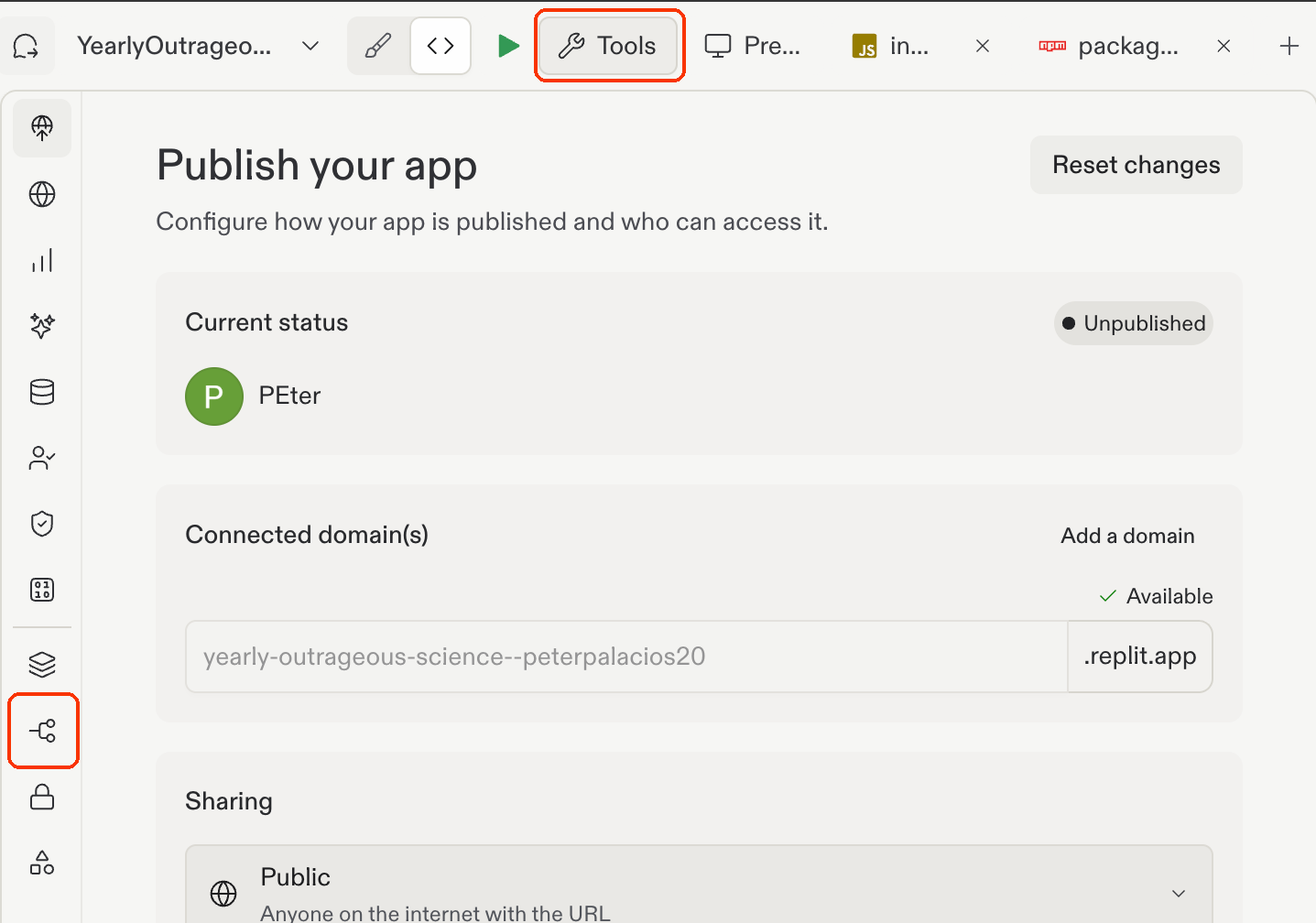
- Initialize the repository. If the project has no repository yet, select Initialize Git Repository.
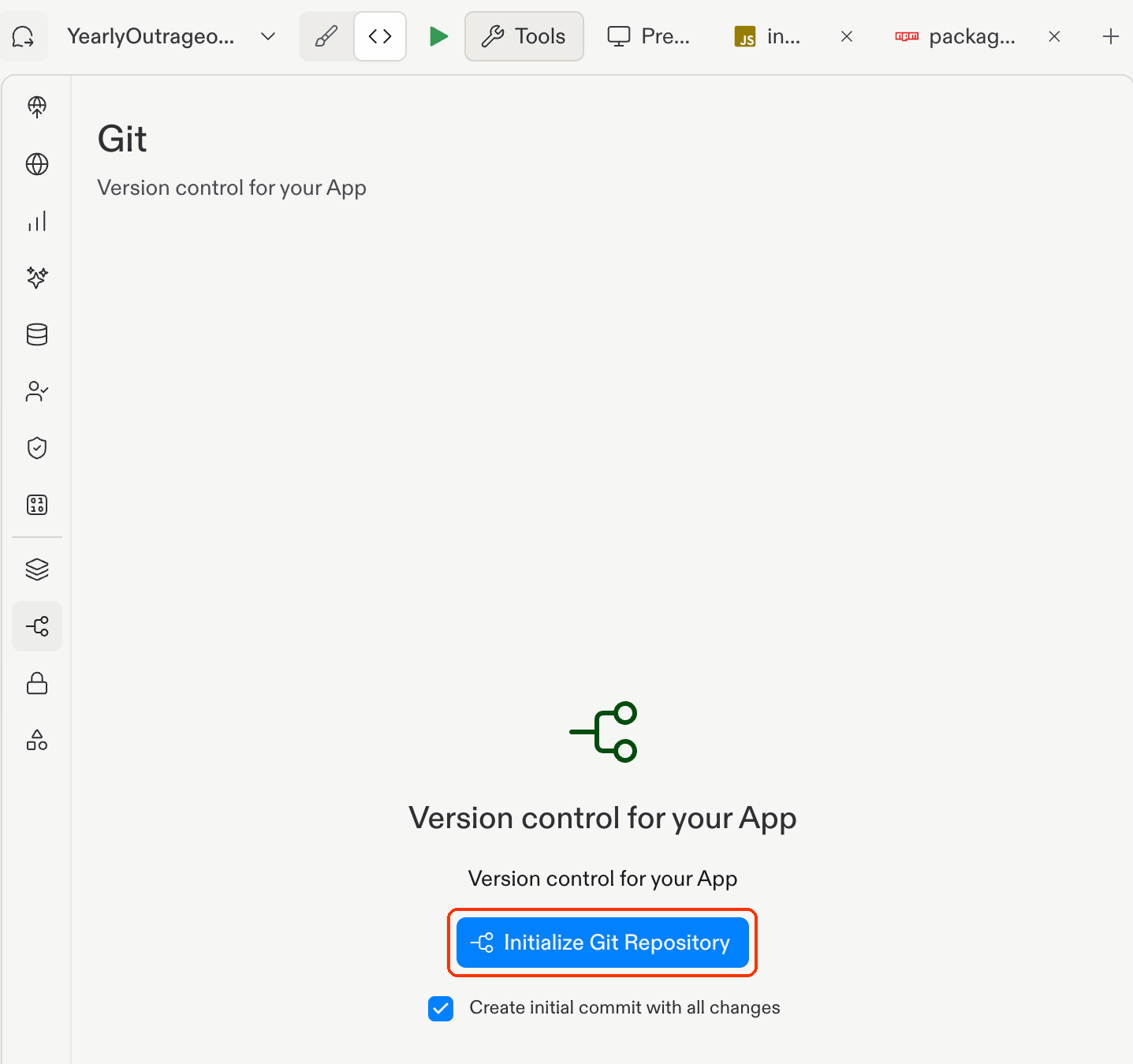
- Connect a remote repository. Link the pane to GitHub and pick or create a private repository.
- Review, stage, and commit. The Review Changes section lists your modified files with additions and deletions. Stage the files and write a commit message (Replit AI can draft one), then commit.
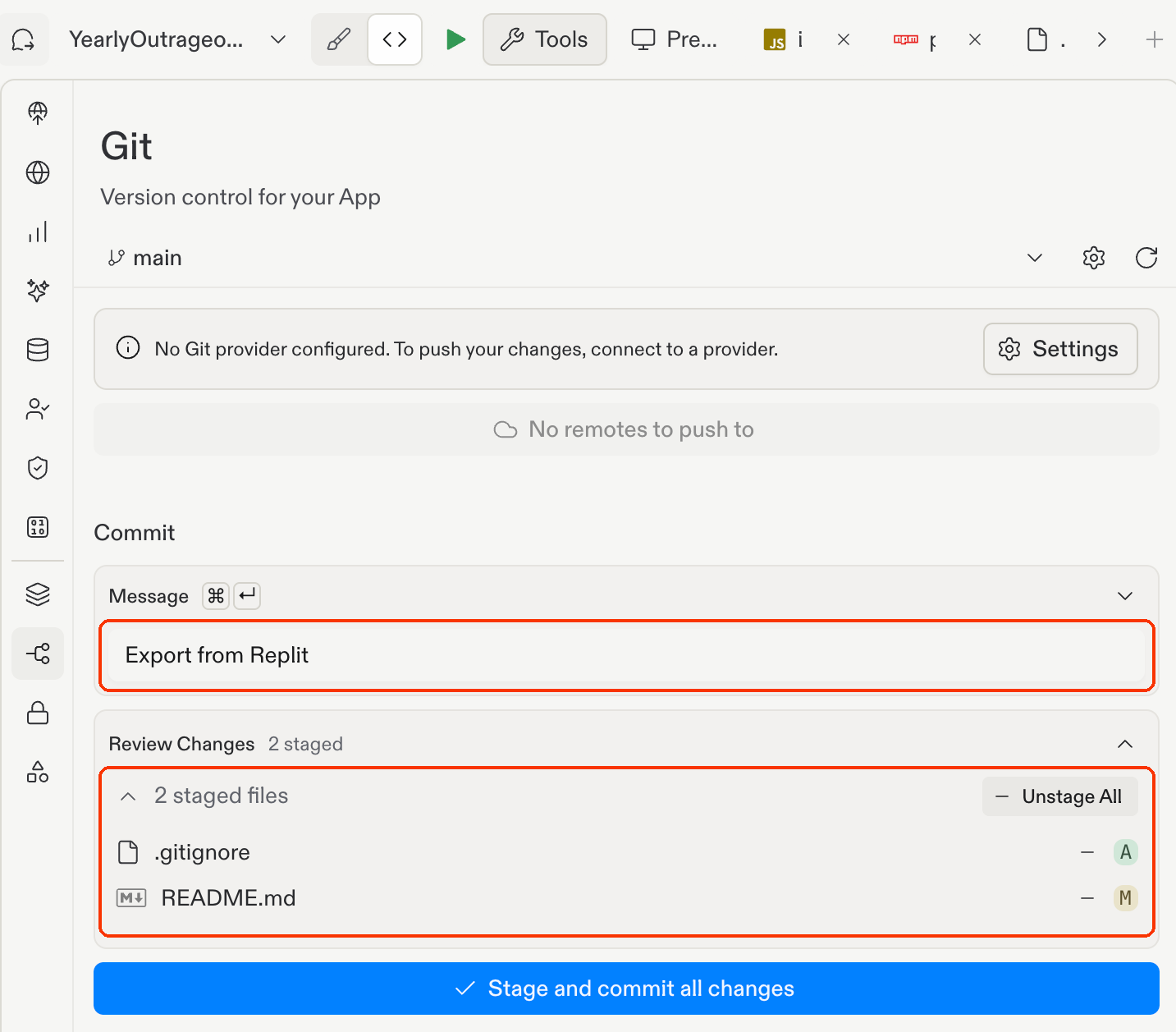
- Push. One click sends your commits to GitHub. Turn on auto-sync in the Git pane if you want two-way syncing while you keep building on Replit.
If you'd rather use the terminal, Shell commands sync with the Git pane, according to the Git pane docs. Open .gitignore first and make sure .env, .cache, and any *.dump files are listed, because git add . stages everything else.
git status # skip git init if this already shows a branch
git init
git remote -v # skip the next line if origin already exists
git remote add origin https://github.com/<owner>/<repo>.git
git add .
git commit -m "Export from Replit"
git branch -M main
git push -u origin main
When git push asks for a password, use a personal access token, since GitHub won't accept your account password. To skip retyping it, you can store the token in a GIT_URL secret.
Keep in mind that collaborators on the project can read that secret, and other workspace members can still print it from the environment. For a one-time export, scope the token to one repository and revoke it after the push.
Watch out: GitHub receives only what you commit and push. Files listed in .gitignore and uncommitted changes don't reach GitHub.
Method 3: Clone the code to your own machine
Cloning puts the project on your laptop. It's also where code that ran on Replit can fail, because Replit was handling the ports and the environment variables for you.
- Clone the repository.
git clone https://github.com/<owner>/<repo>.git
cd <repo>
- Install dependencies. Run npm install for a Node.js app or pip install -r requirements.txt for a Python app. This rebuilds dependency folders like node_modules, which .gitignore keeps out of the repository.
- Read .replit and replit.nix. The .replit file is TOML and sets the run command, environment variables, and language modules. The replit.nix file lists system packages managed through Nix.
With both files open, move the run command into your new setup (package.json scripts for Node.js, a Procfile or README for Python). Then install the system packages from replit.nix yourself.
- Recreate your environment variables. Create a .env file from your Secrets list, then add .env to .gitignore before your next commit.
Your code may also read variables that Replit sets on its own, such as REPLIT_DOMAINS, REPLIT_DEPLOYMENT, and REPLIT_DEV_DOMAIN. None of them exist on your machine, which means your code needs a replacement value for each.
To see the full list of variable names without printing secret values, run printenv | cut -d= -f1 in Replit's Shell while you still have access.
- Fix the port. Replit binds an internal port to an external one in the [[ports]] section of .replit, for example internal 3000 to external 80. On your laptop, the app listens on its own port. On a host, read the port the host assigns from an environment variable.
- Start the app. Run the command you moved into your setup in step 3, then open the local URL. Click through every page, and deploy only after the local copy works.
Rebuilding the parts the export leaves out
Secrets, data, sign-in, and the domain each need a separate step. Replit's copy guide names the database and the web address as the two slowest to move.
How to export your Replit database
Replit separates a development database, which you build against, from a production database, which holds the live records your published app writes.
Replit creates the production database when you publish, as long as the development database has data. That means an app you never published has only development data to export.
- Copy the production connection string. Open the Database tool, select the production database, and open Settings.
- Dump the data from Replit's Shell. Swap in your connection string, keeping the quotes. For the final dump, unpublish the old app first, because anything written after pg_dump runs isn't in the file:
pg_dump -Fc "<production-connection-string>" --no-owner --no-privileges -f backup.dump
- Download the dump. Select the three-dot menu next to backup.dump in the file tree and download it.
- Restore it at the destination. Run pg_restore, then compare row counts against the Replit version.
Never commit backup.dump to GitHub. It holds your database's records. Move it separately and delete every copy once the new app works.
How to fix common Replit export problems
Start with the admin setting. If it's on, the zip fixes below won't help.
Your admin turned on "Ban source code export"
Enterprise admins find this control in Settings > Advanced > Privacy settings. When it's on, members can't export project source code as a ZIP, so the download option is blocked for you.
Replit's privacy settings docs describe it as an export control for ZIP files and warn that code can still leave through other routes. The setting reflects company policy, so talk to your admin first. They can confirm whether you may take the code out and how the code and database should move.
The download fails or stalls
If the menu download stalls, build the zip in the Shell with the exclusion command from Method 1. Then download project.zip from the file tree, as described in Method 1.
The zip is too big to re-import
Replit's ZIP import has a 200 MB limit, so it matters only if you plan to re-import into another Replit account. If that's your plan, start with the Method 1 Shell command, which already drops dependency and build folders.
If the zip is still too large, exclude .git and .local as well. The zip then loses commit history, so keep a GitHub copy if you need that history.
Git push gets rejected
Replit's Git docs say GitHub.com needs a personal access token, and a pasted password gets rejected. Replit's help docs recommend a personal access token for a steadier connection. If auto-sync stops working, reconnect GitHub from your connected services.
The exported app won't run anywhere else
Look for missing environment variables first, then a hardcoded port, then http://localhost URLs in fetch calls, and last a SQLite file on a serverless host.
The last one needs a different fix. Serverless hosts like Vercel and Netlify use ephemeral file systems, so a SQLite file stored next to your code is lost on each redeploy.
To keep that data, Superblocks' guide to deploying vibe-coded apps recommends a managed Postgres database such as Supabase or Neon, or a host with persistent storage.
Common mistakes to avoid
- Committing .env to GitHub. A .env file you add by hand goes into the repository with your next push and stays in Git history after you delete it, so rotate any key that was ever committed.
- Dumping the wrong database. Your published app writes its live records to production. The development database can hold different data.
- Deploying before the database moves. A deploy can succeed against an empty database and show no data at all.
- Skipping key rotation after the move. Keys you re-entered on the new host still work in the old project, and anyone with access there can keep calling those services. Rotate them once the new app is live.
Choosing a host for your exported code
Pick a host based on what your app does and who needs to reach it.
- Static frontend: Vercel, Netlify, or Cloudflare Pages. Connect the GitHub repository and deploy from it.
- Full-stack or Python app: Railway, Render, or Fly.io, which keep a server process running.
- Internal app on company data: A governed platform that ships with SSO and audit logs.
The third case takes extra planning. An app a business team makes on Replit without IT involvement is shadow AI, meaning IT can't see who uses it or what data it touches. A new host doesn't change that.
For that move, Superblocks' Replit migration guide walks through the full process, from the first snapshot to the domain cutover. Its Replit safety review explains the risks of keeping production apps on Replit.
Moving Replit code into production with Superblocks
Superblocks is a governed enterprise vibe coding platform. Non-technical builders make apps with AI inside access rules that IT controls, and imported Replit apps follow the same rules.
- Guided import: App Imports bring over Replit, Lovable, Claude, v0, and Bolt projects, and run policy agents to catch exposed API keys and vulnerable packages before the app reaches production.
- Admin visibility across apps: The Superblocks MCP (listed as Admin MCP on the Enterprise plan) gives admins programmatic access to workspace data such as builders and audit logs. IT can use it to see who made each app and what data it touched.
- Data in your own cloud: On Enterprise, Hybrid deployment keeps production data and the app runtime in your own AWS, GCP, or Azure VPC, and Cloud-Prem runs the full platform, including AI inference, in your own cloud on AWS, GCP, or Azure.
- Code you can review: Every backend API is a TypeScript file, and engineers can open the code behind it with View code.
To bring the exported project into Superblocks, configure your integrations first. Leave generated folders such as node_modules and .git out of the zip, as the Replit import docs instruct.
Then click Import and choose Replit. Paste the export prompt Superblocks provides into the Replit AI chat, and upload the zip Replit generates.
From there, Clark, the Superblocks AI builder, rewrites database clients like pg and Prisma into integrations. It also swaps hardcoded secrets for platform-managed credentials and turns Express routes into backend APIs.
Custom auth like Passport or JWT becomes platform-managed sign-in with RBAC. Superblocks says layouts and styles usually migrate as-is, though Replit-specific packages may lack a direct equivalent and need a manual edit.
Flex, a rent-payments fintech, evaluated several platforms, Replit among them, before running Superblocks inside its own AWS account. According to Superblocks' Flex case study, the team shipped 170 apps in its first 90 days, with 70 in daily use across 18 departments.
Teams costs $125 per month, billed monthly, and includes a 14-day free trial, Clark, staging and production environments, RBAC, and up to 15 builders. One hosted app is included per Team, and each extra app costs $10 per month.
Billed annually, Teams drops to $100 per month. Enterprise uses custom pricing and adds SSO/SAML/OIDC, audit logs, Admin MCP, source control, and Hybrid or Cloud-Prem deployment.
To see an import run against one of your own Replit apps, book a demo. If you're still weighing other platforms, start with our list of Replit alternatives.
Frequently asked questions
How do I get code files from Replit?
You get code files from Replit by opening the three-dot menu at the top of the file tree and choosing Download as zip. That saves the project in one zip. For a single file, select the three-dot menu next to it and choose Download.
How do I export a project file from Replit?
You export a Replit project by downloading it as a ZIP or pushing it to GitHub from the Git pane. The zip includes uncommitted changes. GitHub keeps full commit history, and hosts like Vercel or Render can deploy from the repository.
Can I download Replit?
Yes, Replit has a desktop app for Windows, Mac, and Debian-based Linux. It works the same as the web version, and your apps stay in sync with replit.com. To save project files on your computer, download the zip or push to GitHub.
Does Replit give you the source code?
Yes, Replit gives you the source code of your project as regular files you can download or push to GitHub. Database records, deployment settings, and secret values from the Secrets tool aren't part of the export.
A manual zip can still carry cached secrets in .cache, so leave that folder out. On Enterprise workspaces, an admin can block ZIP export with the Ban source code export setting.
Does exporting code from Replit include my database?
No, exporting code from Replit doesn't include your database. Export the production database separately with pg_dump, using the connection string from the Database tool's Settings tab, then restore it at the destination with pg_restore.
How long does it take to export code from Replit?
The download takes a moment for a small project and longer for a large one. A live app with a database and custom domain needs about an hour of work, with the app offline for 15 to 60 minutes while both move.
Can Superblocks import my Replit app?
Yes, Superblocks imports Replit apps. You paste a Superblocks export prompt into the Replit AI chat and upload the zip Replit produces.
Clark then rewrites the database clients, secrets, auth, and backend routes to run on the platform. Some Replit-specific components may need manual edits after import.


Stay tuned for updates
Get the latest Superblocks news and internal tooling market insights.
Request early access
Step 1 of 2
Request early access
Step 2 of 2

You’ve been added to the waitlist!
Book a demo to skip the waitlist
Thank you for your interest!
A member of our team will be in touch soon to schedule a demo.
production apps built
days to build them
semi-technical builders
traditional developers
high-impact solutions shipped
training to get builders productive
SQL experience required
See the full Virgin Voyages customer story, including the apps they built and how their teams use them.

"Those tools are great for proof of concept. But they don't connect well to existing enterprise data sources, and they don't have the governance guardrails that IT requires for production use."
Table of Contents

Multiple authors
11 Best Secure Code Review Tools in 2026, Ranked With Pricing
Secure code review tools compared on coverage, noise, and price, plus the scanner and AI reviewer pair I'd use to catch flaws in AI-written code.