To deploy OpenAI Codex app projects, you put the code on a host, give it the environment variables it had locally, and test the live URL. Codex builds the app on your machine, where nobody else can reach it.
I checked each step against OpenAI's Sites docs and the hosts' current pricing pages. This guide covers the path from Codex app to production, plus the one-prompt option.
Two ways to deploy Codex app projects
You can ask Codex to host the app for you, or you can push the code to a host you choose.
Here is how the two routes compare:
The seven steps below follow the GitHub route. The Sites option has its own section after Step 7.
What you'll need before starting
Prerequisites:
- A Codex project that runs on your machine.
- A GitHub account.
- An account with the host you pick. Step 5 compares four.
- A ChatGPT plan that includes Codex (every plan does), with limited access on Free. Sites has separate plan requirements, covered in its own section.
How to deploy a Codex app, step by step
Do the steps in order, because Step 5 uses the variable list from Step 2, and Step 6 compares the live app against the checklist from Step 1.
🏃 Step 1: Run the app locally
Start the app the way you normally do while building, and click through it. Check that the main page loads, the navigation works, and the main feature does its job.
If something is already broken, fix it now. Deploying doesn't repair a bug, and it makes the bug harder to find.
Pro tip: Write down what a working app looks like. You'll compare the live version against this list in Step 6.
🔍 Step 2: Ask Codex for a deployment-readiness check
Open the project in Codex and ask for a report before you change anything. The goal is to learn what the app needs before you set up the host.
Use a prompt like this:
Inspect this project and write a deployment-readiness report.
Don't change any files.
List the framework, package manager, build command, start command,
and output folder.
List every environment variable the app reads, by name only, and
mark each as public (safe in the browser) or private (server-only).
Flag hardcoded localhost URLs, secrets in client-side code, and
anything tied to one hosting platform.
End with READY or NEEDS FIXES.
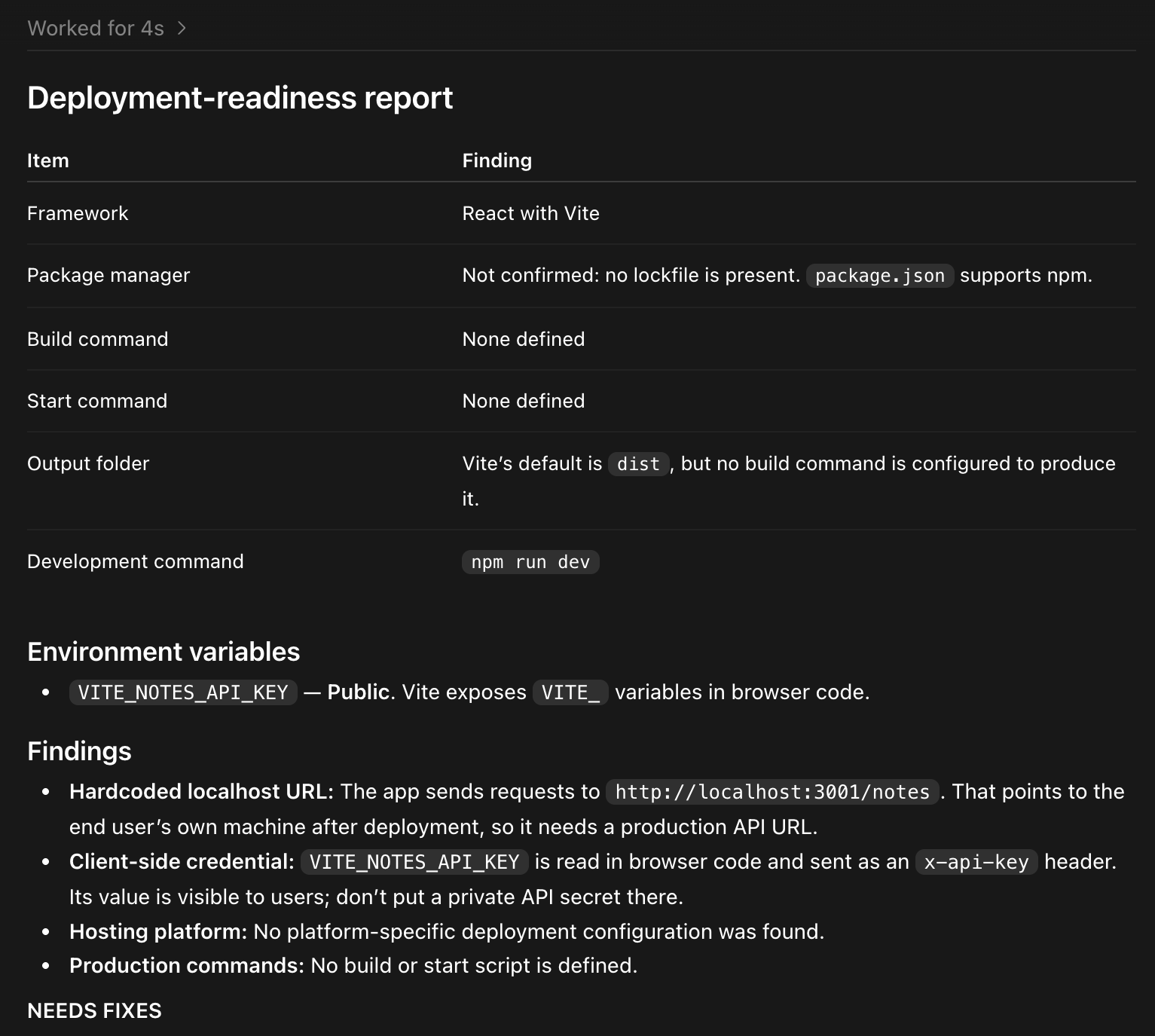
Keep the list of variable names. You'll enter them in the host's dashboard in Step 5.
Pro tip: Ask for names only. A report that prints secret values can leak them into a chat log or a commit.
🛠️ Step 3: Fix the three deployment blockers
Three problems break a first deploy or expose a key. Fix only these, and leave the rest of the app alone.
The three blockers:
- Hardcoded localhost URLs: A call to a localhost address works on your machine and fails on a host. Replace it with a relative path or an environment variable. Development-only settings, like a local proxy, can stay.
- Missing build or start scripts: Hosts read package.json to know how to build and run the app. A front end needs a build script, and a server app needs a start script that runs the production server. The server should also read its port from the environment instead of a fixed number.
- Secrets in client code: Anything in browser code is public. Vite exposes variables that start with VITE_, and Next.js exposes those that start with NEXT_PUBLIC_. A private key, such as an AI provider key or a payment secret, belongs in server-side code.
If Codex put a private key in the front end, stop. Move the call to a server route, and rotate the key if it was ever committed or pushed.
Use a prompt like this:
Fix only the blockers from the report.
Don't refactor or add features.
Move private keys to server-side code, replace localhost URLs
with environment variables, add any missing build and start
scripts, and make sure .env is in .gitignore.
Don't print secret values.
Run the build and list the files you changed.
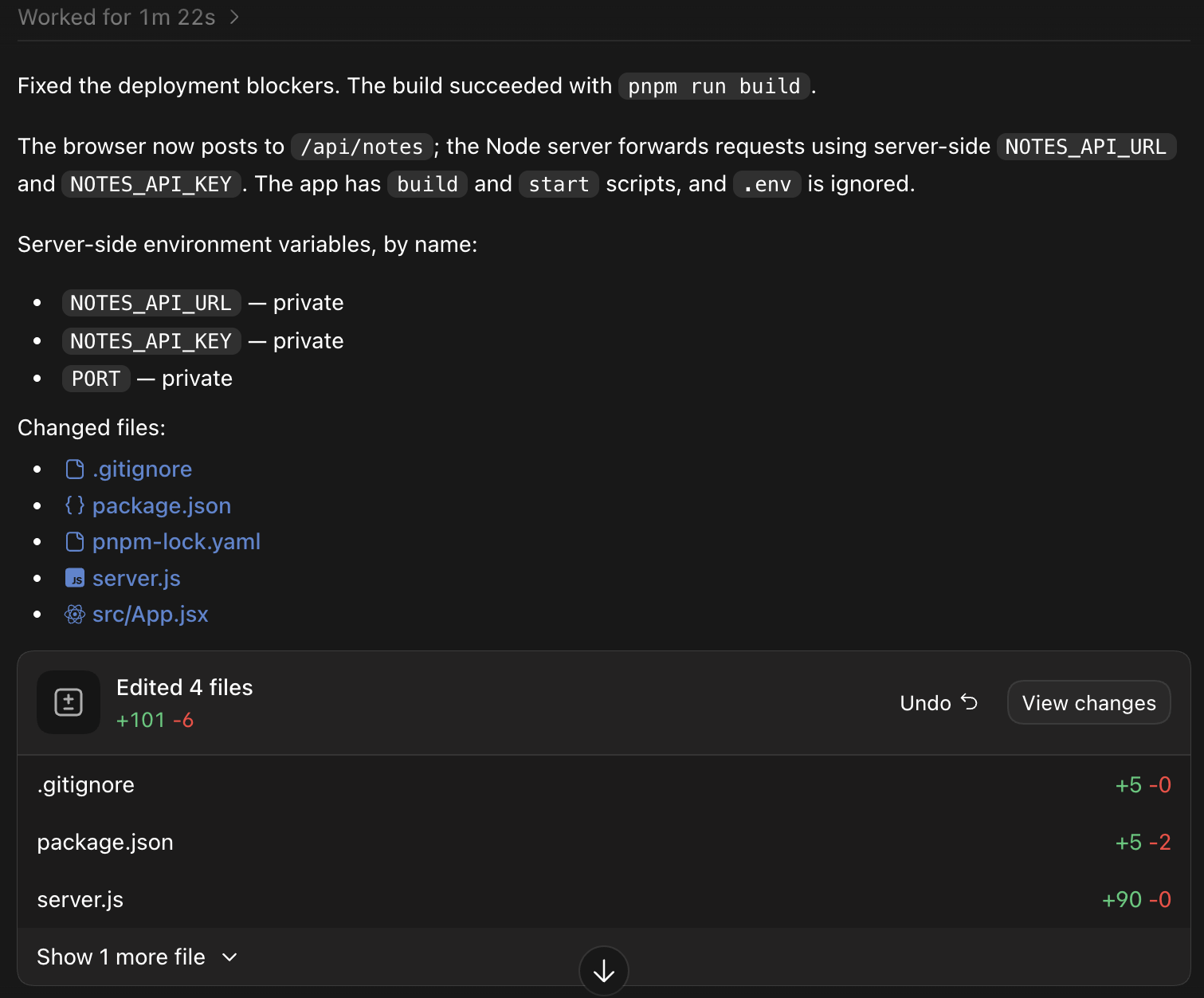
Pro tip: Review the diff before you accept it. Codex should touch a handful of files, and a long list of unrelated changes means the prompt drifted.
📤 Step 4: Push the code to GitHub
The host reads your code from GitHub, and it can redeploy every time you push.
Check before you push:
- The project builds.
- .env and any other secret files are ignored.
- node_modules and build folders aren't committed.
- All source files are included.
- .DS_Store and package-manager cache folders, such as .pnpm-store, are ignored.
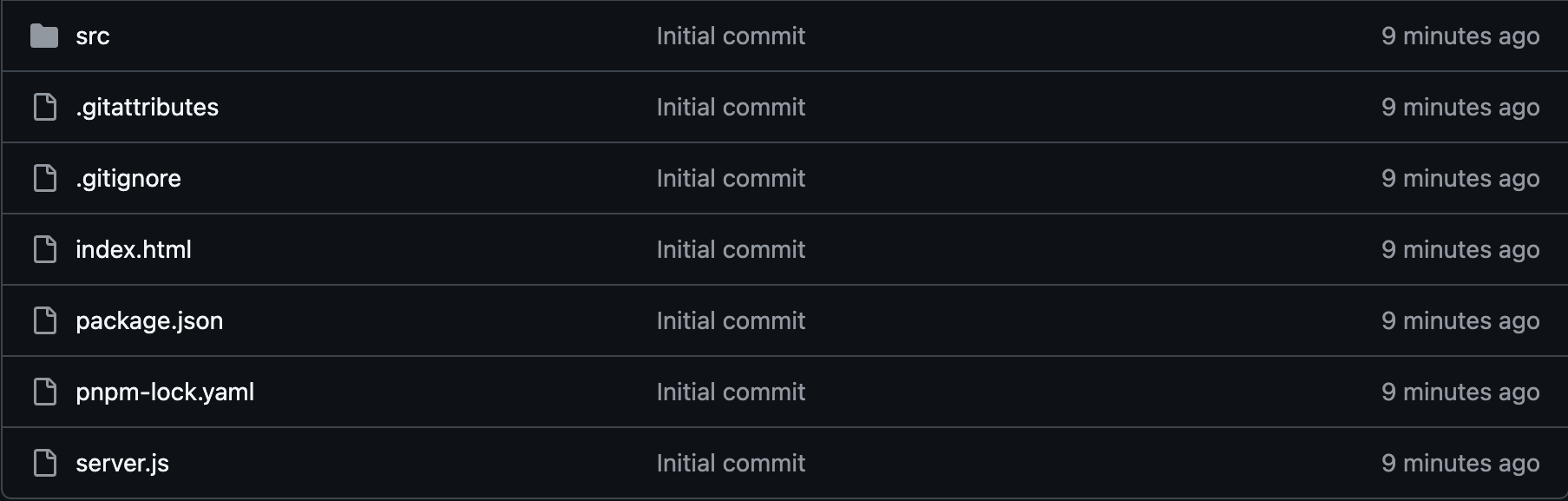
Run git status and read the list. Then commit and push to the branch you plan to deploy. If Codex opened a pull request, merge it first.
Pro tip: If a secret ever reached GitHub, treat it as leaked even after you delete the file, because the commit history keeps it. Rotate it.
🔌 Step 5: Connect a host and add the environment variables
Pick a host that fits the app, import the repository, and enter the variables from Step 2. Our guide to AI app deployment compares the options in depth.
Here are four hosts to compare:
To connect the repo:
- Import the GitHub repository and choose the branch.
- Compare the detected framework and build command against your Step 2 report. If they don't match, stop and fix the setting.
- Add every environment variable by its exact name, with its production value.
- Keep the public and private labels from your report. Never rename a private key to a VITE_ or NEXT_PUBLIC_ variable to make a deploy pass.
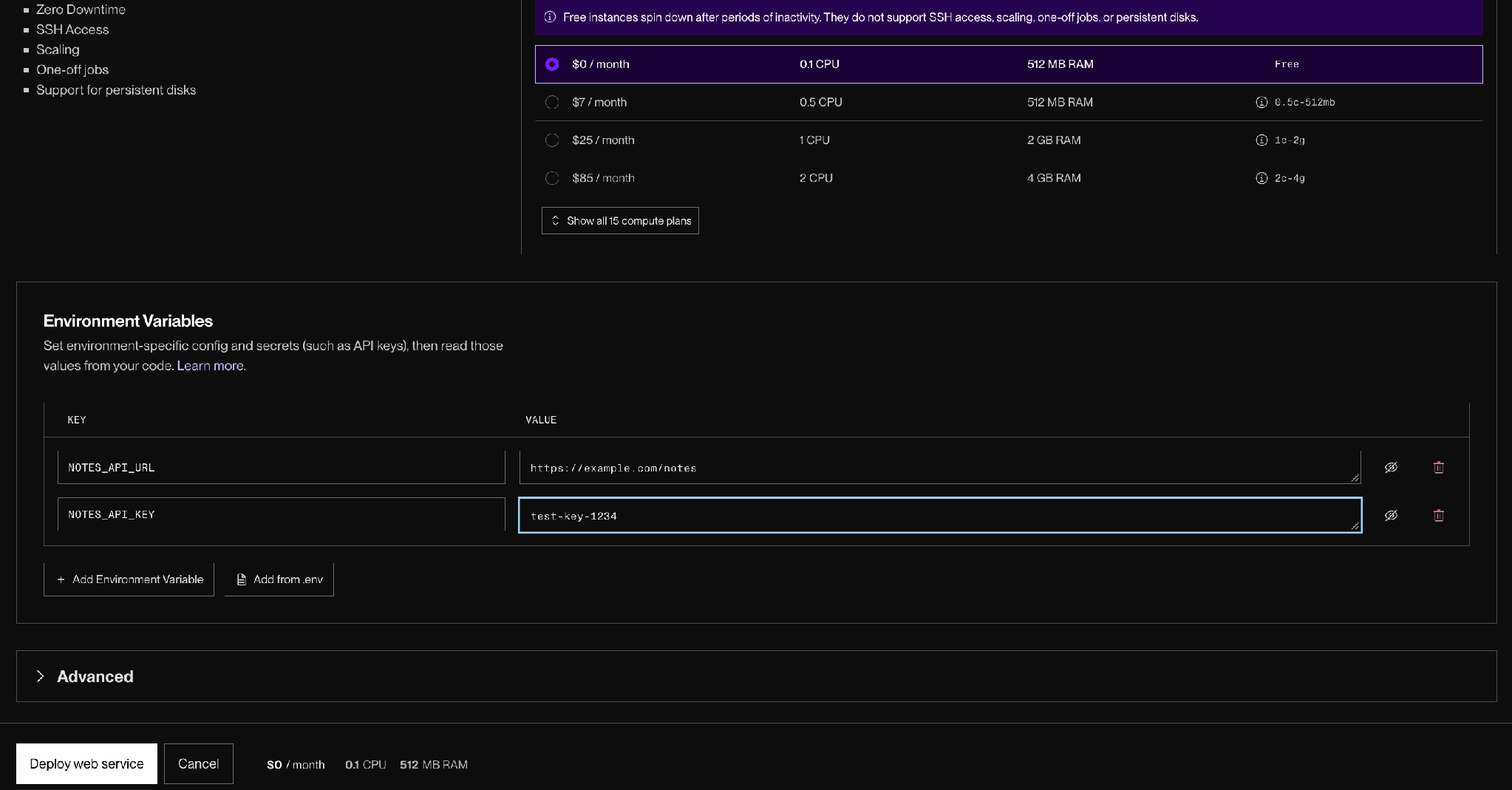
Pro tip: Some settings depend on the live URL, such as sign-in redirects, CORS lists, and webhook addresses. Note them now and update them once the host gives you the address.
🚀 Step 6: Deploy and test the live URL
Click deploy, wait for the build, and open the URL. Then test it the way a user would.
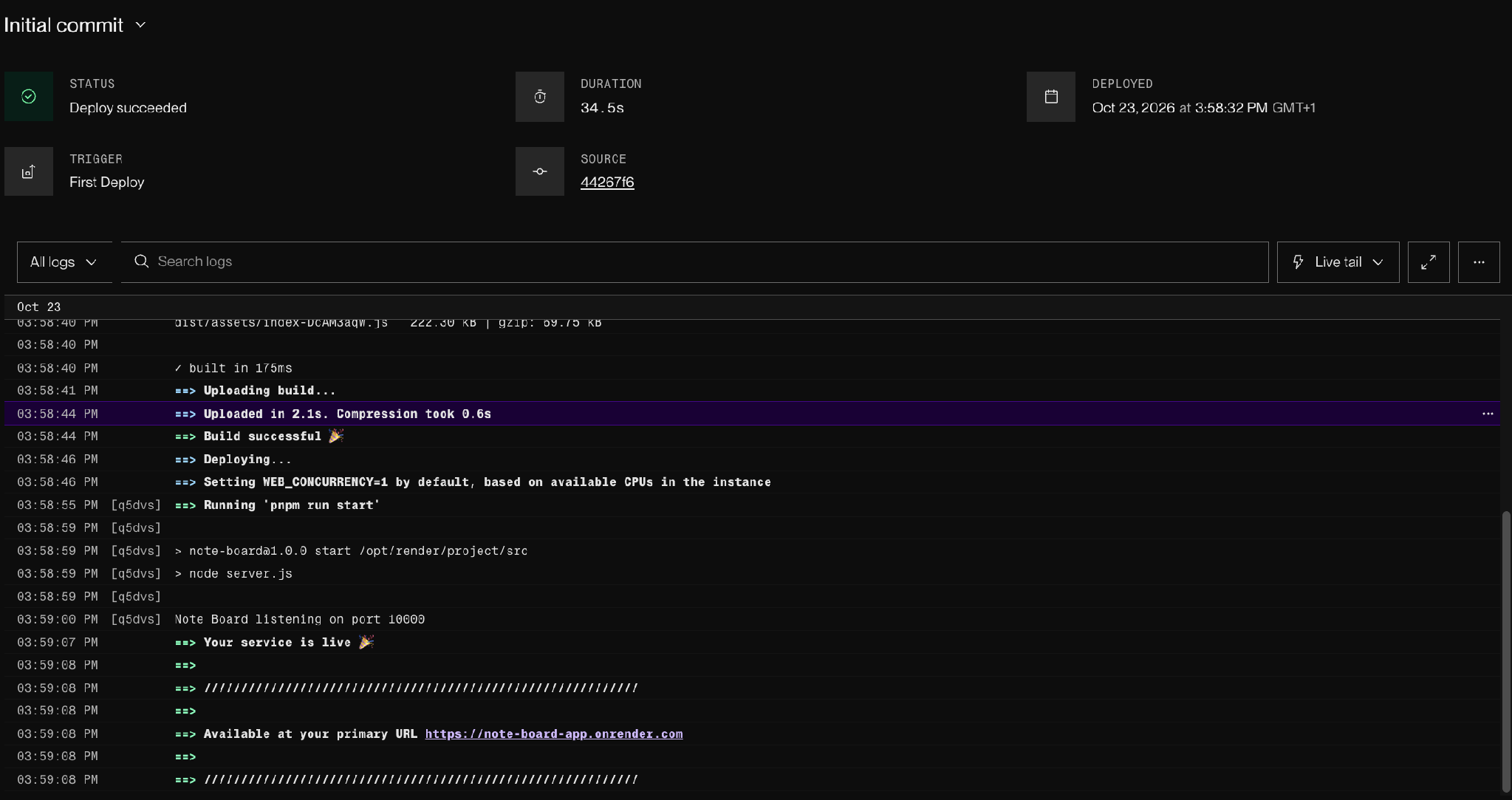
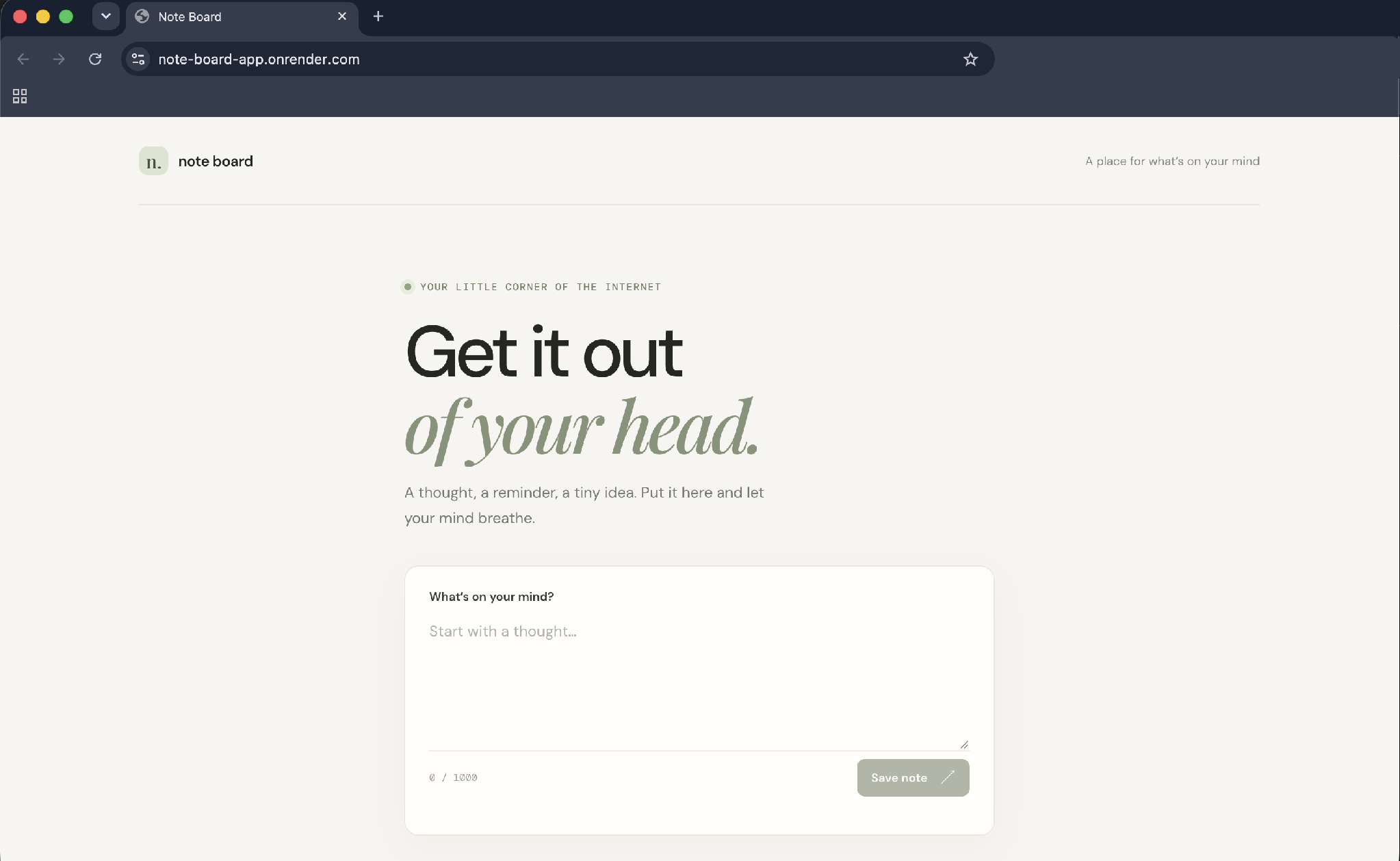
Check the live app:
- The page loads, and refreshing a deep route still works.
- The main feature works.
- Database and API connections work.
- Sign-in works, if the app has it.
- No private key is visible in the browser's page source or network tab.
- The layout holds up on a phone.
If the deploy fails, don't change settings at random. Copy the real error from the host, paste it into Codex, and ask it to find the smallest cause without redesigning anything.
Check for a missing variable, a wrong build command, a Node version mismatch, and a hardcoded port first. Our guide to deploying vibe-coded apps covers more first-deploy failures.
Pro tip: Add the live URL to your auth provider's allowed redirects and your CORS list before you test sign-in.
🔁 Step 7: Set up future updates
From now on, every change follows the same loop. Change it in Codex, review it, push to GitHub, let the host redeploy, and test the live app.
Vercel, Render, and Railway can each build a preview of a branch or pull request. Review a change on its own URL before you merge it, which keeps a bad change from reaching your users.
Pro tip: Keep the list of environment variable names in the repo's README. The next person to deploy, which may be you in six months, will need it.
Deploy Codex app projects with one prompt: Sites
Sites is OpenAI's hosting service inside ChatGPT and Codex. You can build a site by describing it, or host a compatible project you've already built, with no separate deployment setup.
To deploy an existing project:
- Open the project in the Codex section of the ChatGPT desktop app.
- Send a prompt like: Deploy this project with Sites. Check whether it is compatible, make any required changes, and give me the deployment URL.
- To review first, ask Codex to save a version without deploying.
- Deploy the saved version, and ChatGPT returns the URL.
Every Sites deployment URL is a production URL. Save a version first if you want to review changes before they reach the live site.
What to know before you rely on it:
- Plans: Sites is in public beta for Plus and Pro accounts and ChatGPT workspaces. It isn't available on Free or Go.
- Enterprise: Public publishing is off by default, and an admin must enable it and grant role access. OpenAI says charges for running and hosting Sites are currently waived for Enterprise workspaces.
- Usage: Building or editing a site counts toward Codex usage.
- Where it works: Create Sites in ChatGPT on the web, or in Work or Codex in the ChatGPT desktop app. Sites isn't available in the ChatGPT Classic app.
- No CLI or IDE view: Sites doesn't have a standalone management view in the Codex CLI or IDE extension. Use ChatGPT on the web or in the desktop app to create, save, deploy, and manage a site.
Limits: Sites run web apps in their own supported runtime. Some frameworks, private networks, databases, background services, and hosting patterns aren't supported.
HTTP, HTTPS, and WebSockets work, and raw TCP doesn't. Each site gets up to 10 GB of D1 database storage, and object storage has no fixed limit.
Choose Sites for quick sharing and lightweight apps. Choose your own host if the app needs a database or service Sites doesn't run, or if you already pay for infrastructure.
Deploy to Netlify from inside Codex
If you plan to host on Netlify, a plugin saves you the manual GitHub steps. Netlify publishes a plugin in the Codex plugin directory that lets Codex deploy to Netlify without leaving the editor.
Codex runs the Netlify CLI workflow, generates a preview URL, validates the build, and deploys to production when you approve it. The same plugin can create the project, set environment variables, and pull build logs, so a failed deploy gets fixed in the same window. It lands on standard Netlify hosting you control, not OpenAI’s Sites service. See Netlify’s announcement for setup.
Can you deploy a Codex app for free?
Partly. You can deploy a Codex app for free on a free host, but Sites isn't available on the Free plan. Codex itself is included in every ChatGPT plan, with limited access on Free, according to the Codex pricing page.
Free hosting options:
- Vercel Hobby: Free, for personal and non-commercial projects.
- Render Hobby: A $0 workspace plus compute, where free services have limits.
- Google Cloud Run: A free tier of 2 million requests a month for request-billed services.
Free tiers suit hobby projects. For a work app that serves a team, ask who can sign in and who can see the data before you ask about price.
Can you make an app with Codex?
Yes, you can make an app with Codex. Codex is OpenAI's coding agent. You describe the app, and it writes the files and runs commands. You can use it in the ChatGPT desktop app for macOS and Windows, in the Codex CLI, in an IDE extension, and in Codex Cloud.
The code Codex writes still needs login, permissions, and a security review before real users rely on it. If you're choosing a tool, our Claude Code comparison covers the tradeoffs.
Can you run Codex from your phone?
Yes, you can run Codex from your phone, with limits. Codex Remote lets the ChatGPT mobile app control Codex running on a connected Mac or Windows computer. You can start tasks, follow progress, approve actions, and review results while you're away.
The project and the build still run on that computer, which needs to stay on and online. Availability depends on rollout and your workspace settings. Codex Cloud tasks are separate and run in a cloud environment you set up on desktop or web.
Common mistakes to avoid when you deploy a Codex app
Five mistakes to avoid:
- Skipping the readiness check: Without it, you find the missing variable or localhost URL in a failed build log.
- Committing .env: A secret in Git history stays there after you delete the file. Rotate it.
- Turning a private key public to pass a build: Renaming a variable with a VITE_ or NEXT_PUBLIC_ prefix publishes it to every visitor.
- Forgetting live-URL settings: Sign-in redirects and CORS lists still point at localhost until you update them.
- Treating a Sites URL as a preview: Every Sites deployment URL is production.
Taking a Codex app to production on Superblocks
Codex is where the code gets written. If that code is an internal tool for your team, the next question is where it runs with company data, sign-in, and an audit trail. That's the job of Superblocks, the governed enterprise vibe coding platform.
Superblocks' import docs say the Other option works for apps built with any tool. A Codex-built project can come in as a zip.
How to bring a Codex-built project into Superblocks:
- Configure the databases and APIs the app needs as integrations in Superblocks.
- Zip the project's root folder, excluding node_modules, .git, and build output. Make sure package.json sits at the root.
- Start an import in Superblocks, choose Other as the source, and upload the zip.
What Clark rewrites in a Codex project:
What you get after import:
- Company data and SSO: The app connects to company systems through integrations, and Enterprise workspaces can add SSO through your identity provider.
- Your own network: Hybrid keeps the data plane in your AWS, GCP, or Azure account, and Cloud-Prem runs the full platform, including inference, in your own cloud (AWS, GCP, or Azure).
- Audit logs and RBAC: RBAC controls who can use each app, and Enterprise adds audit logs for the access and changes your security team asks about.
- Git and pull requests: Each app connects to one Git repository of your own, and changes go through pull requests.
RBAC is on Teams, while SSO, audit logs, and VPC deployment are Enterprise features. Teams costs $125/month, billed monthly, for up to 15 builders, and Enterprise pricing is custom.
The Security Agent is skipped for apps connected to Git. Those apps need equivalent checks in CI. Superblocks is built for internal apps.
The same import flow also takes projects from Lovable, Replit, v0, Claude, and ChatGPT. The App Imports announcement has the overview, and our guide to Claude prototypes walks through a similar path.
Start with the import overview to bring your first Codex project into Superblocks.
Or book a demo to see a Codex-built app imported.
Frequently asked questions
How do I deploy a Codex app?
To deploy a Codex app, run it locally, ask Codex for a readiness check, fix the blockers, push to GitHub, connect the repo to a host with your environment variables, and test the live URL. You can also ask Codex to deploy it with Sites.
What is the hardest part of deploying a Codex app?
The hardest part of deploying a Codex app is handling secrets and environment variables. The code moves through GitHub, but the keys don't, and a private key left in client code is visible to every visitor. The readiness check in Step 2 finds it before you deploy.
Do I need to know how to code to deploy a Codex app?
No, you do not need to know how to code to deploy a Codex app with Sites, because one prompt handles the build and the URL. The GitHub route needs basic Git and some comfort with environment variables, and Codex can run the commands and explain each result.
What if my Codex app fails to deploy?
If your Codex app fails to deploy, copy the actual error from the host and paste it into Codex, then ask for the smallest fix. Look for a missing environment variable, a wrong build command, a Node version mismatch, or a hardcoded port before anything else.
Can Superblocks help me take a Codex app to production?
Yes, Superblocks can help you take a Codex app to production when the app is an internal tool. Import the project as a zip, set up your company data as integrations, and Clark rewrites database clients, auth, and hardcoded keys to platform equivalents. SSO and audit logs come with Enterprise.


Stay tuned for updates
Get the latest Superblocks news and internal tooling market insights.
Request early access
Step 1 of 2
Request early access
Step 2 of 2

You’ve been added to the waitlist!
Book a demo to skip the waitlist
Thank you for your interest!
A member of our team will be in touch soon to schedule a demo.
production apps built
days to build them
semi-technical builders
traditional developers
high-impact solutions shipped
training to get builders productive
SQL experience required
See the full Virgin Voyages customer story, including the apps they built and how their teams use them.

"Those tools are great for proof of concept. But they don't connect well to existing enterprise data sources, and they don't have the governance guardrails that IT requires for production use."
Table of Contents

Multiple authors
Base44 Enterprise: Features, Security, Pricing (2026)
Base44 enterprise explained: SSO, SCIM, IP allowlisting, data residency, security, pricing, pros and cons, and alternatives. Prices checked October 2026.